Diagram and profile
Three tabs show the same service in three ways: the profile as a summary, the diagram as a map, the browser as a searchable list of every element.
- Tabs
- Profile, Diagram, Browser
- Diagram
- entity, complex and enum types, operations
- Export
- SVG, PNG, Mermaid erDiagram
- Keyboard
- / search, 0 fit, Shift+click path
Profile
The profile opens first. It gives the OData version, origin (SAP CAP, RAP, Gateway generated from CDS or classic Gateway), namespaces, the size of the $metadata and the contents in numbers. Below it, each entity set is listed with what it allows: create, update, delete, $search, $count.
Copy as Markdown puts the profile on the clipboard – for a ticket, a wiki or a handover.
Diagram
The diagram draws each entity type as a card with its properties, connected by navigations. The line style shows the relation: navigation, containment, inheritance, type usage, operation result.
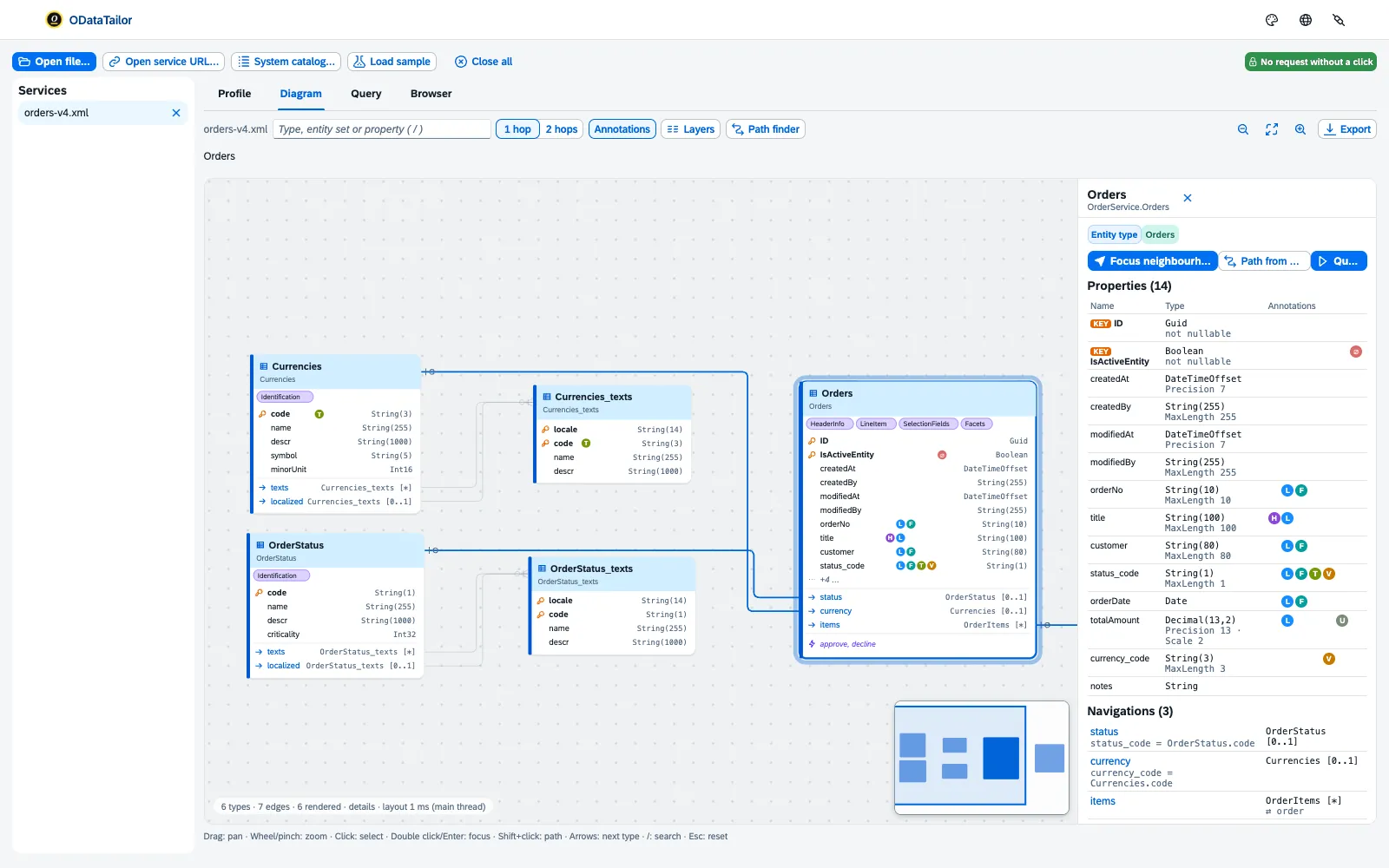
- Search: / jumps to the search field for type, entity set or property.
- Neighbourhood: with 1 or 2 hops the diagram shows only the neighbours of the selected type. Focus neighbourhood in the detail pane does the same; Esc exits the focus.
- Layers: show or hide annotations, operations, and complex and enum types. Hide draft takes the technical draft types out of the picture.
- Zoom: +, − and 0 for “Fit to screen”. Zooming out makes the cards more compact until only titles remain.
Large services with hundreds of types stay smooth too: the layout is computed in the background, and only what is visible is drawn.
Understanding annotations
A click on a type opens the details on the right: properties with type, facets and key, navigations, bound operations and annotations. Every known annotation – from the UI, Common, Capabilities and other vocabularies – carries a short explanation of what it does in an app.
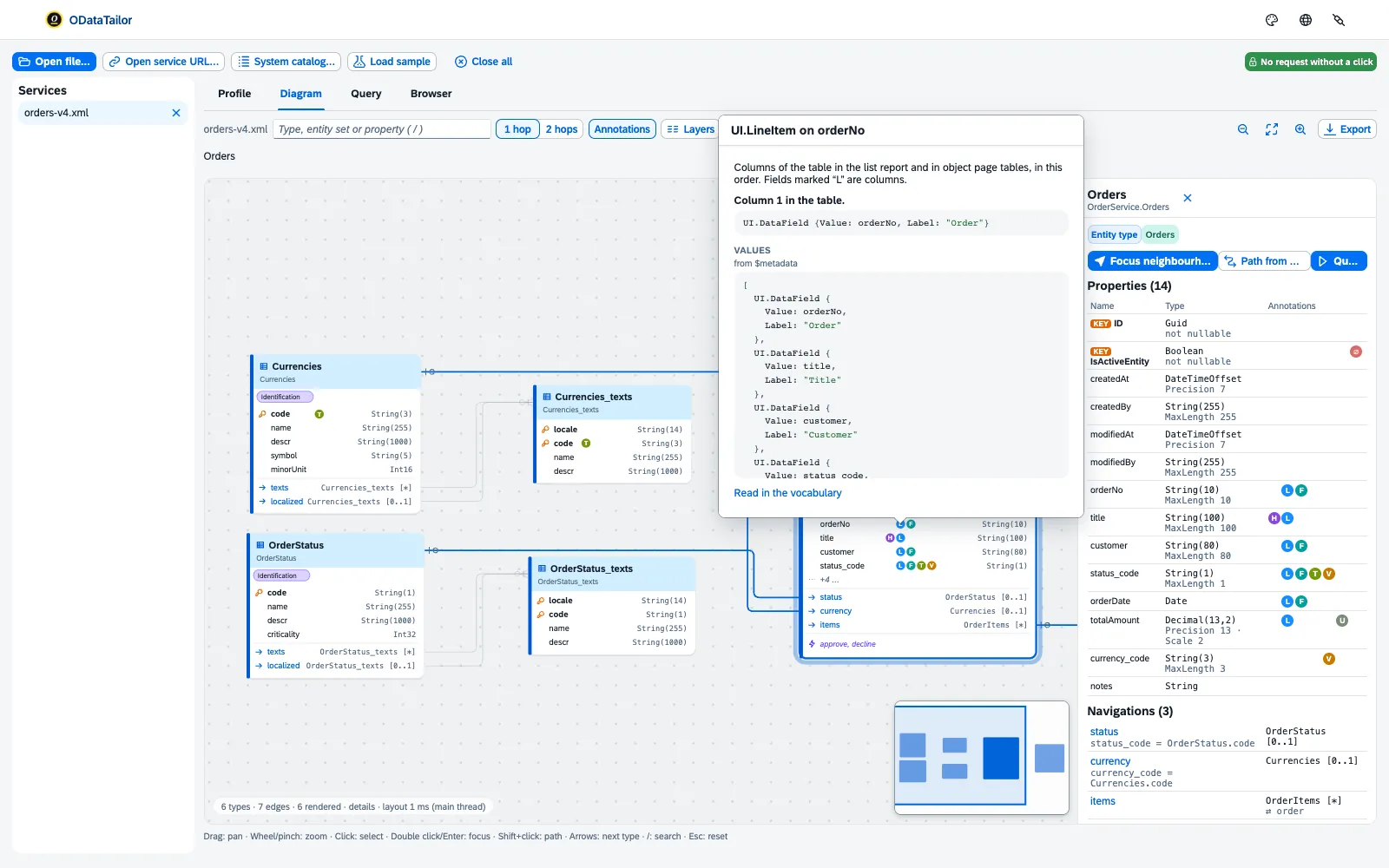
Markers on the properties show at a glance where Fiori uses a field: header title (UI.HeaderInfo), table column (UI.LineItem), filter field (UI.SelectionFields), text, value help, unit or currency, hidden. A click on a marker explains it, and “Read in the vocabulary” leads to the definition.
Path finder
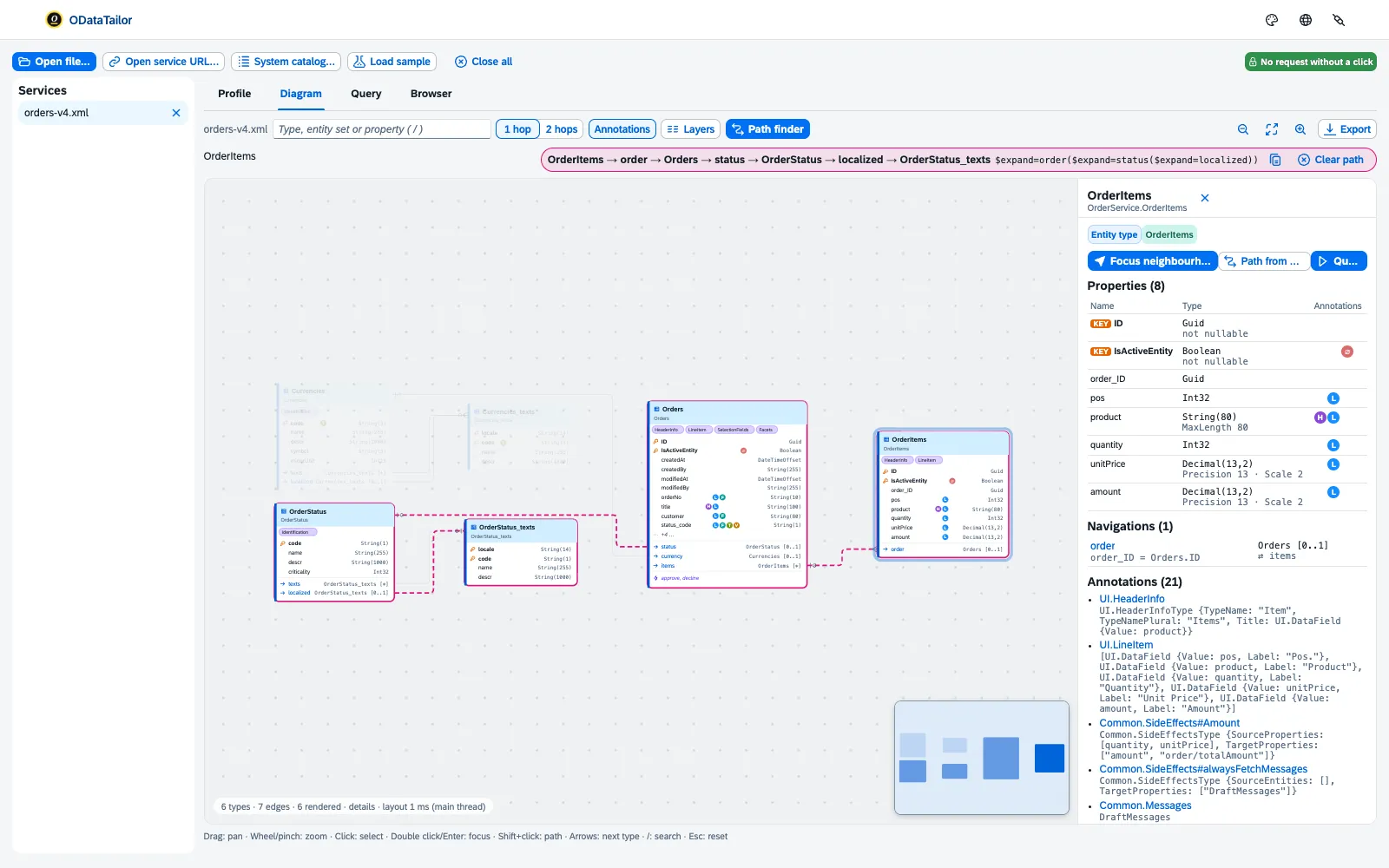
- Select the start type in the diagram.
- Pick the target type with Shift+click – or open Path finder and fill in From and To.
- The diagram highlights the shortest path. Copy $expand puts it on the clipboard as a ready option.
Export
Export saves the current view as SVG or PNG or copies it as a Mermaid erDiagram – for Markdown in Git, Confluence or a specification. Sample URL in the detail pane builds the address for a single entity or the collection of an entity set.
Browser
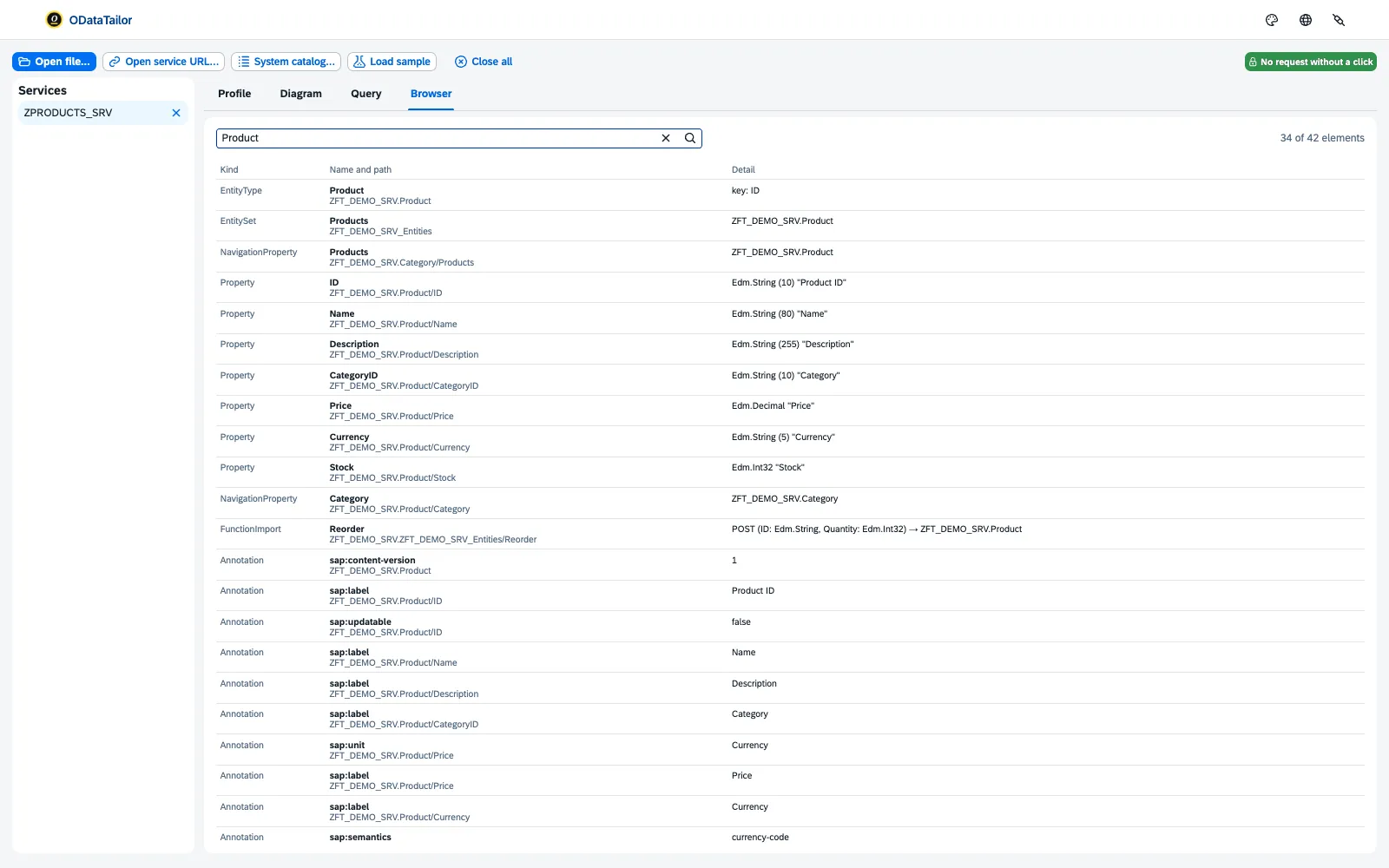
The Browser tab lists every element of the service – sets, types, properties, operations, annotations – with name and path. The search field filters across all of them at once. That is how you find the one property with MaxLength 10, or every place an annotation is attached.
See also
- Features at a glance Features · Understand
- Further reading SAP Fiori Elements – Development and Extensibility (SAP PRESS)
- Docs Opening a service
- Docs Querying
- Sources Diagram1 · Profile2 · FrontTailor3